
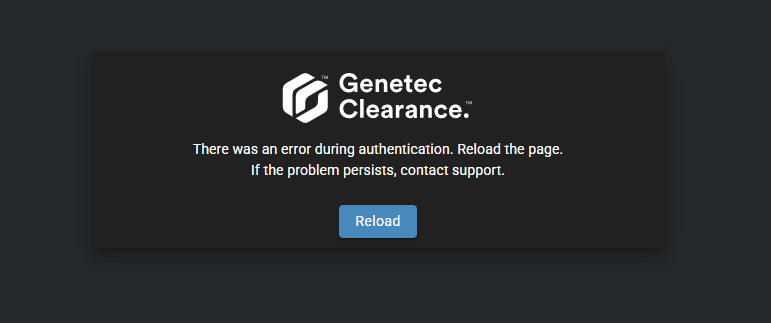
How can I resolve errors that occur when I sign in to Clearance?
2026-06-17Last updated
If you experience an error after signing in to Genetec Clearance™, resolve it by ensuring that your workstation time is synchronized with Internet time or by accessing Clearance using the correct bookmark. This issue can have multiple causes. To help you troubleshoot it, review the possible causes and solutions.
Causes
- Your workstation clock is not synchronized with an Internet time server. Clearance might display an error after you sign in.
- You accessed Clearance using an outdated or incorrect bookmark. This can cause an error after you sign in.
Solutions
Synchronize your workstation clock with an Internet time server.
- Open the date and time settings on your workstation.
- Enable automatic time synchronization or select an Internet time server.
- Update the system time.
- Sign in to Clearance again.
Access Clearance from the correct URL and update your bookmark.
- Open your browser.
- Navigate to the Clearance sign in page.
- Sign in to confirm that the page works correctly.
- Delete the incorrect bookmark.
- Create a new bookmark for the correct page.