Editing file metadata
2025-11-07Last updated
To assign or correct metadata for multiple files simultaneously, you can edit file metadata. In Genetec Clearance™, file metadata provides identifying information for files, like location, assigned officer, and so on.
Before you begin
What you should know
| Field | Required permission level |
|---|---|
| Category | Edit |
| Assigned officer | Manage Note: You must be included in the Manage
devices security policy to modify the assigned officer field. |
| Location | Edit |
| Tags | Edit |
| Custom fields | Edit |
Procedure
-
Select the files for which you want to edit metadata and then click
Edit.

-
In the Edit files metadata window, open the fields menu and select
the fields you want to edit metadata for.
Note:You can edit metadata for up to 50 files at a time.

-
For each of the fields you want to edit, click the Action button
and choose to add, overwrite, or clear the field.
 Note:If you select Overwrite, the values you select are added to the file field, and any existing values that you do not select are removed.
 -
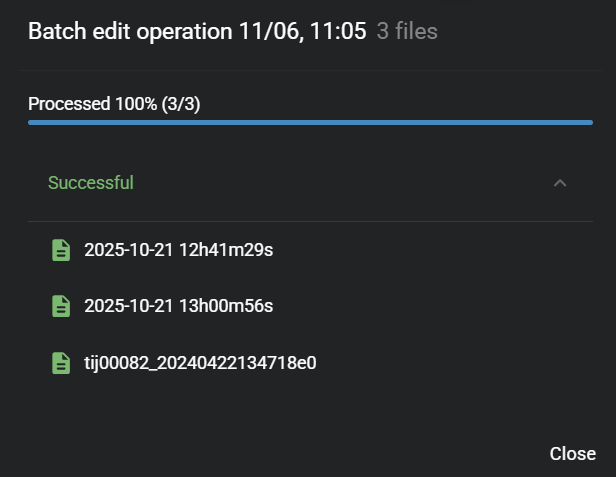
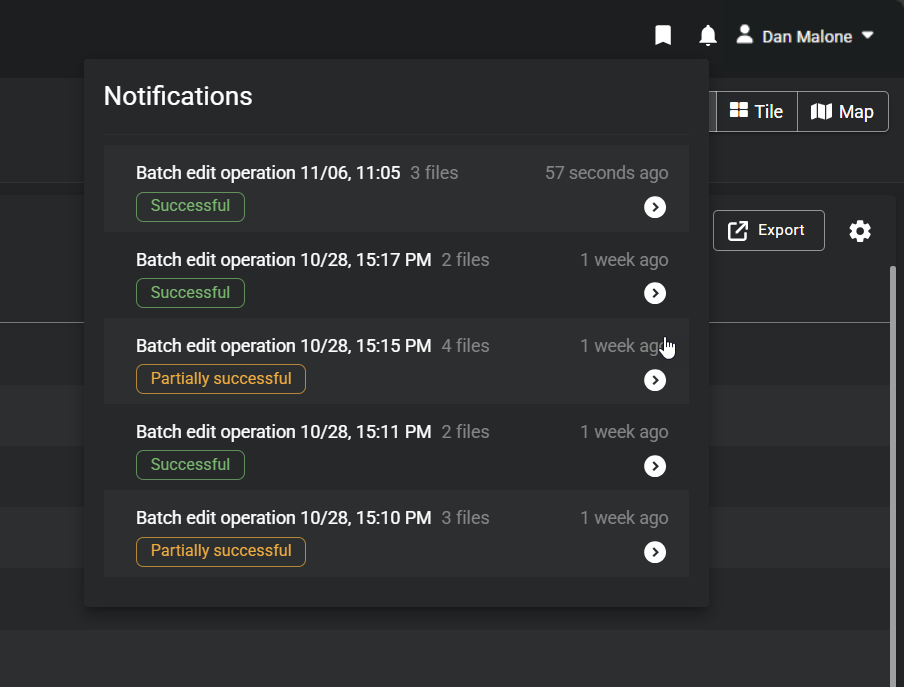
(Optional) Click Notifications (
 ) and review the progress of your file metadata edits.
-
(Optional) Click any files of interest to review details related to the metadata
changes.