
Setting the retention period for cases and files
To ensure that evidence is deleted when it is no longer required, you can configure retention periods for cases and files in the recycle bin. You can also configure retention periods to automatically delete files by source or category.
What you should know
- Digital evidence can be stored in accordance with the requirements of the incident. For example, the incident category of the case is used to determine the retention policy.
- Digital evidence can also be stored based on the device type that is associated
with the recordings. For example, body-worn camera (BWC) video could be retained for 90 days, public surveillance video
for 30 days, and so on.
If a file is associated with a case, it inherits the case's retention policy. If the file retention policy is longer than the case retention, then the file retention policy is used.
Closing and reopening cases also affects the retention period for files. For example, when a closed case is reopened, the scheduled deletion for files associated with that case is changed back to Never delete, if the file is not in the recycle bin.
Procedure
-
Click Configuration (
 ).
).
-
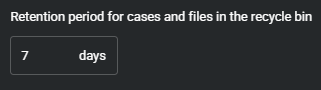
In the Retention settings section, select the retention
period that you require for cases and files in the recycle bin.
The default setting is 7 days, and the maximum is 365 days.
-
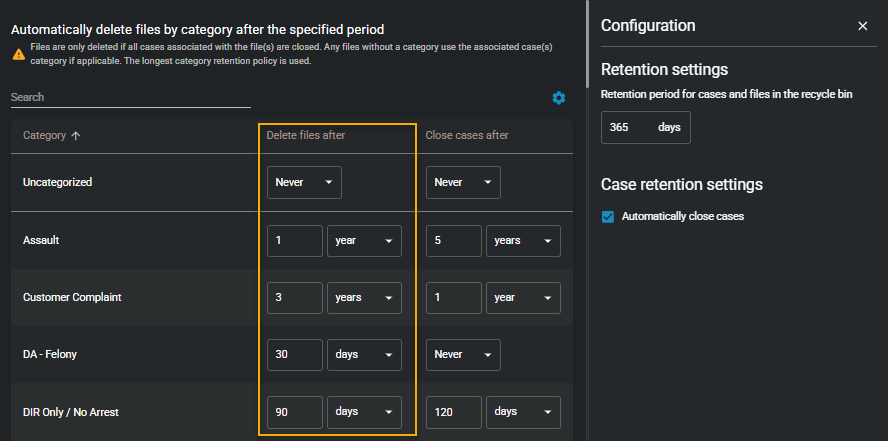
Specify a retention period for each category that is defined in the
system:
The Never delete checkbox is selected by default. This retains your files indefinitely.
-
(Optional) To specify a retention period in years, clear the
Never delete checkbox next to the category
that you require and select a value.
The maximum value is 100 years.
-
(Optional) To specify a retention period in years, clear the
Never delete checkbox next to the category
that you require and select a value.
-
Click Configuration ().
-
In the Case retention settings section, click
Automatically close cases.
 Note:The retention period is calculated starting from the date the case is created. Once the retention period ends, Clearance automatically closes the case if this setting is enabled.
 -
Set the period after which cases are closed based on the respective
categories.
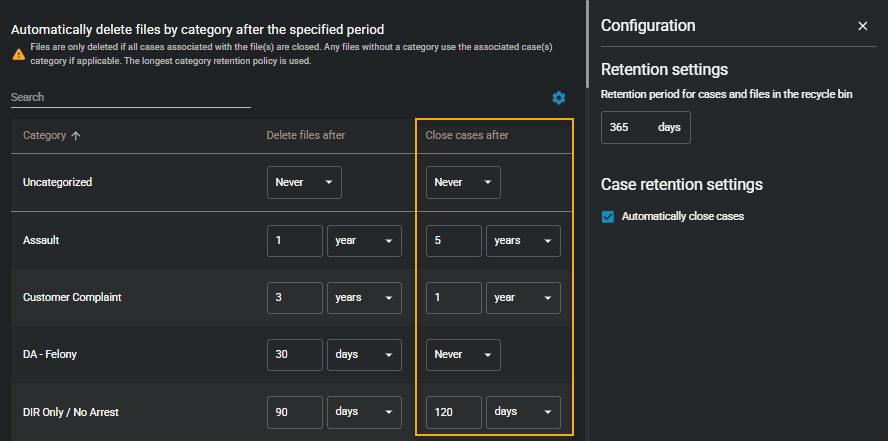 Note:After a case is closed, the retention period that applies to files in that case comes into effect. When that retention period is complete, the files are deleted.
Example
Watch this video to learn more. Click the Captions icon (CC) to turn on video captions in one of the available languages.
After you finish
For example:
- If you change the automatic case closure policy, some files could be moved to the recycle bin.
- If you change the retention period for the recycle bin some files could be permanently deleted.
- If you change the file retention period by source or category files could be automatically deleted and end up in the recycle bin.
Cases and files that have been automatically deleted remain available in the recycle bin for the specified retention period. All deleted cases or files can be restored while they are in the recycle bin.